IT infrastructure guide
NAS vs SAN, RAID and Server Sizing: A Practical Guide for Business
In this guide
- What is a server?
- Rack server vs tower server (and blades)
- DAS vs NAS vs SAN: the three storage models
- NAS vs SAN in practice
- RAID levels explained
- How to choose a server for small business
- Sizing storage and planning growth
- Redundancy, power and environment
- Backup: the 3-2-1 rule
- Warranty, support and lifecycle
- On-premise, dedicated or cloud?
- Common mistakes
- FAQ
- Conclusion
A failed disk in a single office server on the morning of a VAT filing deadline is a lesson most finance teams only need once. Getting servers and storage right avoids that. This guide explains NAS vs SAN (and where direct-attached storage fits), rack versus tower servers, RAID levels, how to size a server for real workloads, and how backup and cloud options complete the picture for UAE businesses.
Key takeaways
- A server is a computer built to provide services to other devices reliably, with redundant components and remote management.
- DAS is storage attached to one server; NAS shares files over the network; SAN provides block storage to multiple servers over a dedicated network.
- Most small businesses need a NAS or a well-built server with internal storage; SAN or hyperconverged storage becomes relevant with virtualisation clusters.
- RAID protects against disk failure, not against deletion, ransomware or fire. You still need backups.
- Size servers on measured workloads and growth, then add headroom; memory and storage are usually the first limits.
- Follow the 3-2-1 backup rule and test restores. Heat, dust and power quality in UAE server rooms make preventive care essential.
What is a server?
So, what is a server? A server is a computer that provides services, data or resources to other computers (clients) over a network. File sharing, email, databases, accounting software, user logins and printing are all typical server roles.
Physically, a business server differs from a desktop in a few important ways:
- Redundant components: dual power supplies, hot-swap drives and fans that can be replaced without shutting down.
- Error-correcting (ECC) memory: detects and corrects memory errors that would otherwise corrupt data.
- Remote management: a dedicated controller (such as Dell iDRAC or HPE iLO) lets engineers monitor, power-cycle and reinstall the server from anywhere.
- Designed for 24/7 operation: components and cooling are rated for continuous load.
- Enterprise warranty: next-business-day or faster onsite parts and engineer support.
A server can run one role directly (“bare metal”) or, far more commonly today, run a hypervisor hosting several virtual servers. We return to that later.
Rack server vs tower server (and blades)
The rack server vs tower server decision depends mostly on where the server will live and how many you expect to run.
Tower servers
A tower server looks like a large desktop PC. It stands on the floor or a shelf, needs no rack and is usually quieter. Towers suit a small office with one or two servers and no dedicated comms room.
Rack servers
Rack servers are flat units measured in “U” (1U = 44.45 mm) and mount in a standard 19-inch rack alongside switches, firewalls and UPS units. They are denser, easier to cable neatly and the standard choice once you have a server room or more than one server.
Blade servers
Blades slide into a shared chassis that provides power, cooling and networking. They suit high-density enterprise environments, not typical SMEs.
| Factor | Tower | Rack | Blade |
|---|---|---|---|
| Best for | 1–2 servers, no server room | Server rooms, growing estates | Large enterprise estates |
| Space efficiency | Low | High | Very high |
| Noise | Usually quieter | Louder | Loud |
| Cabling | Can get messy | Tidy with cable management | Centralised in chassis |
| Expansion | Good internal drive bays | Good; scale by adding units | Limited per blade; scale by chassis |
| Cooling needs | Room ventilation | Rack airflow, ideally dedicated cooling | Significant dedicated cooling |
Many tower models can be converted to rack mounting with a kit, which helps if you expect to move into a proper server room later. If you are planning that room, see our server room requirements checklist.
DAS vs NAS vs SAN: the three storage models
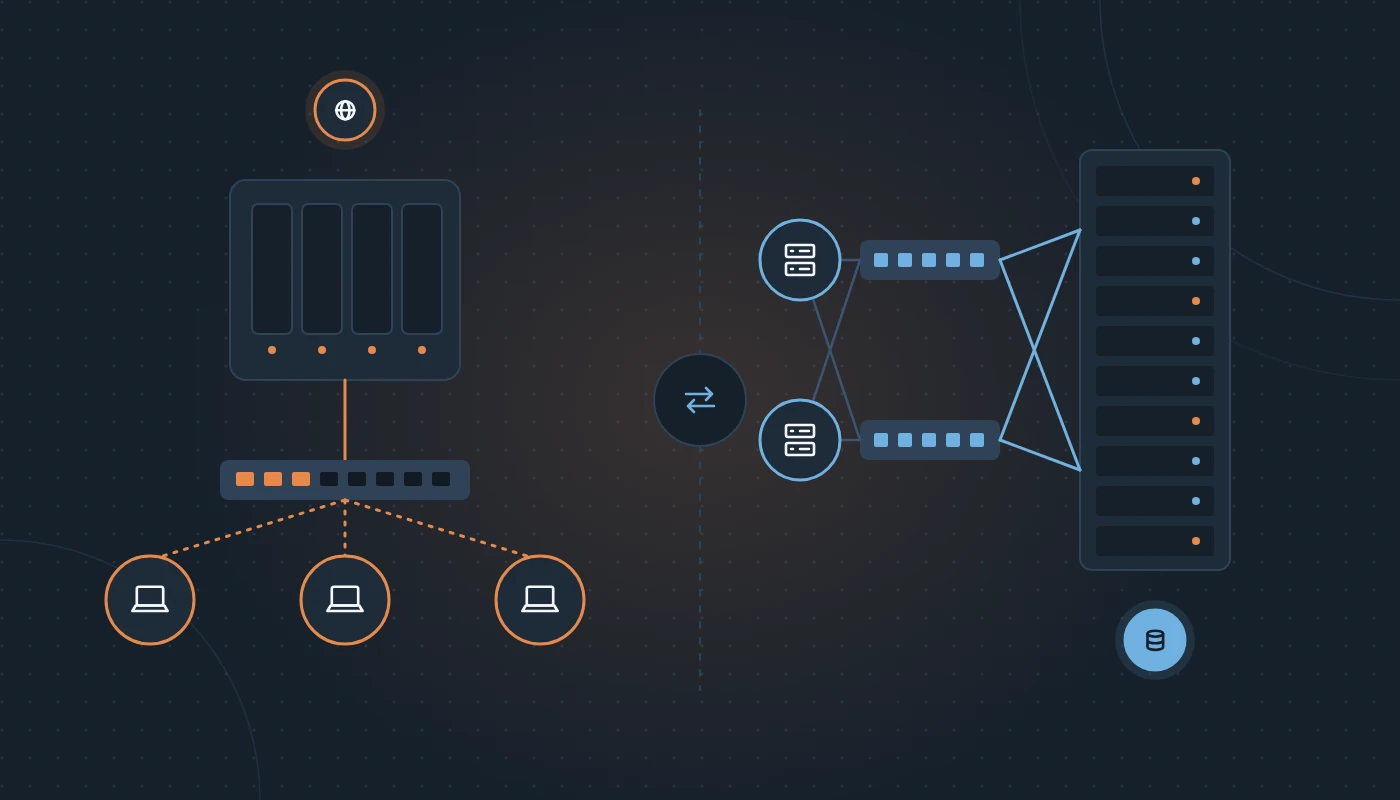
The DAS vs NAS vs SAN comparison is about how storage connects to the systems that use it.
DAS: Direct-Attached Storage
Storage directly connected to a single server: internal drives, or an external drive enclosure attached by SAS or USB. It is simple, fast and inexpensive to set up, but the capacity belongs to that one server.
NAS: Network-Attached Storage
A NAS is a dedicated storage device on your network that shares files using protocols such as SMB (Windows file sharing) and NFS. Users and servers see folders and files. Modern NAS devices also run backup software, snapshots, sync and sometimes light applications.
SAN: Storage Area Network
A SAN provides block-level storage to servers over a dedicated network, using iSCSI, Fibre Channel or NVMe over Fabrics. The server sees SAN storage as if it were a local disk and formats it with its own file system. SANs are typically used as shared storage for virtualisation clusters and databases.
| Factor | DAS | NAS | SAN |
|---|---|---|---|
| Access level | Block, one server | File (SMB/NFS) | Block, multiple servers |
| Connection | Internal/SAS/USB | Standard Ethernet | Dedicated iSCSI/FC/NVMe-oF network |
| Sharing | No (single host) | Yes, many users and servers | Yes, many servers |
| Complexity | Low | Low to medium | Medium to high |
| Typical use | Single server, local apps | File shares, backups, departmental storage | Virtualisation clusters, databases |
| Scalability | Limited to the host | Good, add drives or units | High, designed to scale |
Where hyperconverged fits
Hyperconverged infrastructure (HCI) takes a different route: each server contributes its internal drives to a shared, replicated storage pool managed by software. It removes the separate SAN and is common in modern virtualization solutions.
NAS vs SAN in practice
Textbook definitions do not decide purchases; workloads do. Here is how NAS vs SAN plays out for typical UAE businesses.
When a NAS is the right choice
- A 20-person architecture practice in Dubai Design District needs central storage for large drawing files, with snapshots to recover from mistakes. A business NAS with fast SSD caching is ideal.
- A trading company needs a backup target for its server and laptops. A NAS with backup software and an offsite copy works well.
- A branch office needs local file storage that syncs with head office.
When a SAN (or HCI) is the right choice
- A logistics company runs a two-host virtualisation cluster for its ERP, warehouse system and domain controllers. Both hosts need access to the same VM storage so that VMs restart if a host fails. That requires shared block storage: a SAN or HCI.
- A hospital group runs databases needing consistent low-latency block storage.
The grey zone
Some NAS products also present block storage over iSCSI, and some SAN arrays (“unified storage”) also serve files. For many small clusters, a unified array or a good NAS offering iSCSI can be a pragmatic middle ground, as long as performance and redundancy (dual controllers, redundant power) match the workload.
RAID levels explained
RAID (Redundant Array of Independent Disks) combines multiple drives so that the array keeps working if one (or more) drives fail, and can also improve performance. Here are the main RAID levels explained.
| RAID level | Minimum drives | How it works | Survives | Usable capacity | Best for |
|---|---|---|---|---|---|
| RAID 0 | 2 | Striping, no redundancy | No drive failures | 100% | Temporary/scratch data only |
| RAID 1 | 2 | Mirroring | 1 drive failure | 50% | OS drives, small servers |
| RAID 5 | 3 | Striping with single parity | 1 drive failure | (n−1) drives | Read-heavy, smaller drives |
| RAID 6 | 4 | Striping with double parity | 2 drive failures | (n−2) drives | Large-capacity NAS and file storage |
| RAID 10 | 4 | Mirrored pairs, striped | 1 per mirror pair | 50% | Databases, VMs, write-heavy |
Choosing a RAID level
- RAID 1 for the operating system on a server is a simple, safe default.
- RAID 10 is the usual choice for virtual machines and databases because writes are fast and rebuilds are quicker.
- RAID 6 suits large-capacity file storage. With today’s high-capacity drives, rebuilds take a long time, and RAID 5’s single-parity protection leaves you exposed if a second drive fails during the rebuild.
- Avoid RAID 0 for anything you cannot afford to lose.
Hot spares and monitoring
A hot spare is an idle drive that automatically replaces a failed one. Combine it with alerting through the server’s management controller so failed drives are replaced promptly. RAID that silently runs degraded for months is a common cause of data loss.
What RAID does not do
RAID is about availability, not backup. It does nothing against accidental deletion, ransomware, corruption, theft, fire or flood. Always pair RAID with proper backups.
How to choose a server for small business
Here is how to choose a server for small business use without over- or under-buying.
- List the roles. File sharing, domain/identity, accounting or ERP database, line-of-business apps, print, backup. Decide which stay on-premise and which move to SaaS (for example, email to Microsoft 365).
- Gather vendor requirements. ERP and accounting vendors publish recommended server specifications; follow them, then add headroom.
- Decide on virtualisation. Almost always yes. Even a single host benefits from running roles as separate VMs.
- Choose the form factor. Tower if there is no rack; rack if there is or will be.
- Size CPU, memory and storage (see the next section).
- Specify redundancy: dual power supplies, RAID controller with cache protection, hot-swap drives, remote management licence.
- Pick the warranty level: at least next-business-day onsite; four-hour response for critical servers.
- Plan backup before the server arrives, not after.
- Plan the environment: rack space, UPS capacity, cooling and network ports.
The two most common platforms in the UAE are Dell PowerEdge and HPE ProLiant. Both are well supported locally; our Dell PowerEdge vs HPE ProLiant comparison explains the differences in management tools and support.
Server selection checklist
☐ All server roles and applications listed
☐ Vendor system requirements collected
☐ Current CPU, memory and storage usage measured
☐ Growth assumptions agreed for 3–5 years
☐ Form factor chosen (tower or rack)
☐ Dual power supplies and hot-swap drives specified
☐ RAID level chosen per workload
☐ Remote management controller licensed
☐ Warranty response level matches criticality
☐ Backup target and offsite copy planned
☐ UPS capacity and runtime confirmed
☐ Cooling and rack space confirmed
Sizing storage and planning growth
Measure first
If you have existing servers, measure actual CPU, memory, disk throughput (IOPS) and capacity usage over a few weeks, including busy periods such as month-end closing, payroll runs through WPS and quarterly VAT returns.
Rules of thumb
- Memory is the first resource most virtualised servers exhaust. Allocate for each VM’s needs plus the hypervisor, then add headroom.
- CPU cores are rarely the bottleneck for SMEs, but per-core licensing for Windows Server and some databases means more cores can also mean more licences.
- Storage capacity: take current usage, apply realistic annual growth (often 20–40% for file-heavy businesses) over the server’s life, then add snapshot and free-space overhead.
- Storage performance: databases and VMs need SSD or NVMe. Spinning disks are fine for archive and backup tiers.
Tiering
Many organisations combine fast SSD storage for VMs and databases with high-capacity HDD storage for archives and backups. A NAS with SSD cache can provide a good balance for file-heavy teams.
Redundancy, power and environment
Eliminate single points of failure
For critical systems, consider two hosts with shared storage or replication, dual network connections to separate switches, and dual power supplies on separate circuits or UPS units.
Power quality
Power interruptions and fluctuations happen, particularly in older buildings and industrial areas. An online (double-conversion) UPS sized for your load, with enough runtime for a clean shutdown, protects drives and RAID controllers from corruption.
Heat and dust
UAE summers push building cooling hard, and dust gets into everything. Servers in poorly cooled cupboards fail early. Keep inlet temperatures within manufacturer guidance (ASHRAE recommends roughly 18–27°C for most IT equipment), monitor temperature, and clean filters and fans regularly. Proper server room design with dedicated cooling makes a measurable difference to hardware life.
Backup: the 3-2-1 rule
Every storage design needs a backup design. The 3-2-1 rule is the standard baseline:
- 3 copies of your data (production plus two backups)
- on 2 different types of media or storage
- with 1 copy offsite
Many organisations now extend this to 3-2-1-1-0: one copy immutable or offline (protection against ransomware), and zero errors after verified test restores.
Practical implementation for a small business might be: VM backups to a local NAS every night, replicated to a cloud or second-site repository with immutability, plus Microsoft 365 data backed up separately. A managed backup and disaster recovery service can take over monitoring and test restores, which are the parts most often neglected.
Define your RPO (how much data you can afford to lose) and RTO (how quickly you must be running again) for each system. They decide backup frequency and whether you need replication rather than just backups.
Warranty, support and lifecycle
Warranty levels
Server vendors typically offer next-business-day onsite parts, four-hour onsite response and mission-critical options. Choose based on how long the business can tolerate the system being down. Confirm the vendor’s local parts depot and engineer coverage for your emirate.
Lifecycle
Most businesses plan a server refresh every five years or so, aligned with warranty length. Beyond that, extended support may be possible but parts become harder to source and firmware updates stop. Track warranty end dates in your asset register so refreshes are planned, not forced.
Local supply and installation
Buying from established server suppliers in Dubai gives you regionally valid warranties, local stock for common parts and professional server installation, including rack mounting, firmware updates, RAID setup and hypervisor configuration.
On-premise, dedicated or cloud?
Owning servers is not the only option.
- On-premise: full control, local performance for large files, but you manage hardware, power and cooling.
- Dedicated server: a physical server rented from a provider, in their facility. A dedicated server in the UAE gives you single-tenant performance without owning hardware, and helps with local data residency.
- Private or public cloud: virtual servers on demand, scaling up and down, paid as an operating expense.
Many businesses end up hybrid: file storage and latency-sensitive apps on-site, line-of-business apps hosted in the UAE, email and collaboration in SaaS, and backups in the cloud.
Common mistakes
- Buying a desktop as a “server”. No ECC memory, no redundant power, no remote management, consumer warranty.
- Treating RAID as backup. It is not.
- Using RAID 5 with large drives. Long rebuilds leave arrays exposed to a second failure.
- Ignoring failed-drive alerts. A degraded array is one failure from data loss.
- Sizing for today only. Storage fills faster than expected, especially with design files and video.
- No UPS or undersized UPS. Sudden power loss corrupts data and damages hardware.
- Putting the server in a store room without cooling. UAE heat shortens hardware life dramatically.
- Never testing a restore. A backup you cannot restore is not a backup.
Frequently asked questions
What is a server in simple terms?
A server is a computer that provides services such as file storage, applications, databases or user logins to other computers on a network. Business servers have redundant components, ECC memory and remote management for reliable 24/7 operation.
What is the difference between NAS vs SAN?
A NAS shares files over a normal network using protocols like SMB or NFS. A SAN provides block-level storage to multiple servers over a dedicated network, appearing to each server as a local disk. NAS suits file sharing and backups; SAN suits virtualisation clusters and databases.
DAS vs NAS vs SAN: which do I need?
A single server with local drives (DAS) suits very small setups. A NAS suits shared files and backup targets. A SAN or hyperconverged storage suits multiple virtualisation hosts that need shared storage.
Rack server vs tower server: which should a small business buy?
Choose a tower if you have one or two servers and no rack. Choose rack servers if you have a server room or expect to grow, because they are denser, easier to cable and simpler to manage alongside network equipment.
Which RAID level is best?
RAID 1 for OS drives, RAID 10 for databases and virtual machines, and RAID 6 for large-capacity file storage. Avoid RAID 0 for any important data.
How do I choose a server for small business use?
List the roles it will run, check application vendor requirements, measure current usage, size for three to five years of growth, specify redundant components, choose a suitable warranty and plan backups before purchase.
Do I still need a server if I use the cloud?
Not always. Many small businesses run entirely on SaaS. A local server or NAS still makes sense for large files, local applications, backups or where internet reliability or data residency requirements matter.
How long does a business server last?
Typically around five years in production, aligned with the vendor warranty. Servers can run longer, but support, parts and firmware updates become harder to obtain.
Conclusion
NAS vs SAN is not a contest with one winner: a NAS is the right answer for shared files and backups, a SAN or hyperconverged design is the right answer for clustered virtual servers, and plenty of businesses use both. Pair the right storage with a properly specified server, a sensible RAID level, a 3-2-1 backup plan and a cool, clean, protected environment, and your infrastructure will stay quietly reliable.
Explore more infrastructure topics in our IT guides, or ask us to size a server and storage design for your workloads.
Ready to choose the right server and storage?
More IT infrastructure guides
Structured Cabling Guide: Cat6 Cable vs Cat6a, Standards and Installation
Everything about Cat6 cable and structured cabling: Cat6 vs Cat6a, TIA/ISO standards, installation, testing and labelling for UAE offices.
Server Room Requirements: A Design Checklist for UAE Offices
Server room requirements explained: space, power, UPS, cooling, temperature, fire suppression, security and monitoring, with a design checklist for UAE offices.
Office Relocation Checklist for IT: Move Your Office Without Downtime
A complete office relocation checklist for IT: 12-week timeline, internet lead times, server moves, cabling, Wi-Fi, testing and day-one support for UAE offices.